

From skill design to orchestration · Part 2/3
How we prepared the work, why we built custom skills, what format they follow, and the single instruction that kicks everything off.
In Part 1 we covered the what and the why: Cowork executes multi-step work from a task board. Here we get into how it’s built. This is the most technical installment in the series.
Designing the Tasks
Five deliberately different tasks, to see Cowork switch tools depending on the work.
| ID | Task | Associated skill | Deliverable |
|---|---|---|---|
| T-001 | Executive presentation for Project Alpha (report, minutes, budget) | PowerPoint (built-in) | Executive-Summary.pptx |
| T-002 | Standardized cost comparison across three vendors | Excel (built-in) | Vendor-Comparison.xlsx |
| T-003 | Review of a tender report against the RFP | tender-review (custom) |
Review-Report.docx |
| T-004 | Handover delivery email (draft, not sent) | Email (built-in) | Draft in the conversation |
| T-005 | Handover document using a corporate template | corporate-handover (custom) |
Client-Handover.docx |
When we mapped them out, we noticed that two (T-003 and T-005) had a method of their own — our RFP checklist, our handover template — that we wanted applied the same way every time. That’s where the need to build custom skills comes from.
Why Custom Skills
The difference between “make a presentation” and “make our presentation.”
Cowork ships with thirteen built-in capabilities (Word, Excel, PowerPoint, PDF, Email…) that it activates on its own — ideal for standard tasks. But when a task has a fixed, opinionated shape — a procedure, a tone, a template — it’s worth capturing it as a custom skill. Your team’s knowledge becomes reusable and consistent.
The Normative Format of a Skill: SKILL.md
One folder, one text file, and a well-written description. That’s all it takes.
Location
Each skill is a folder inside OneDrive, under /Documents/Cowork/skills/, containing a SKILL.md file. Skills live in OneDrive; data and deliverables live in SharePoint or OneDrive.
OneDrive/
└── Documents/
    └── Cowork/
        └── skills/
            ├── tender-review/
            │   └── SKILL.md
            └── corporate-handover/
                └── SKILL.md
File Structure
The SKILL.md has two parts: a YAML metadata header (delimited by triple dashes) with at least name and description, and the instruction body in Markdown. The description is critical: it’s what Cowork reads to decide when to load the skill. Actual excerpt:
---
name: tender-review
description: >
  Reviews a draft tender report against the RFP
  (terms and technical specifications), identifies
  omissions and unmet requirements, and produces a
  report in Word. Use when asked to "review a tender
  report" or "check against the RFP".
---
# Tender Report Review

## When to use this skill
- There is an RFP and a draft tender report in the folder.

## Steps
1. Locate the RFP and the draft. If either is missing, stop.
2. Extract the enforceable requirements from the RFP.
3. Compare: Covered / Partial / Missing + reference.
4. Generate a Word report with a compliance table.

## Rules
- Never make things up. Where data is missing, leave [confirm: ...].
Both complete skills (tender-review and corporate-handover) are included in the series attachments, ready to copy to OneDrive.
Discovery and Limits
Discovery. Cowork discovers skills automatically at the start of each conversation — no registration or restart needed.
Invocation. The Skill column in the task board and the YAML description guide which capability gets invoked.
Limits. Up to 50 skills per tenant; each SKILL.md under 1 MB; up to 20 accompanying files and 10 MB per skill; referenced templates in OneDrive or SharePoint.
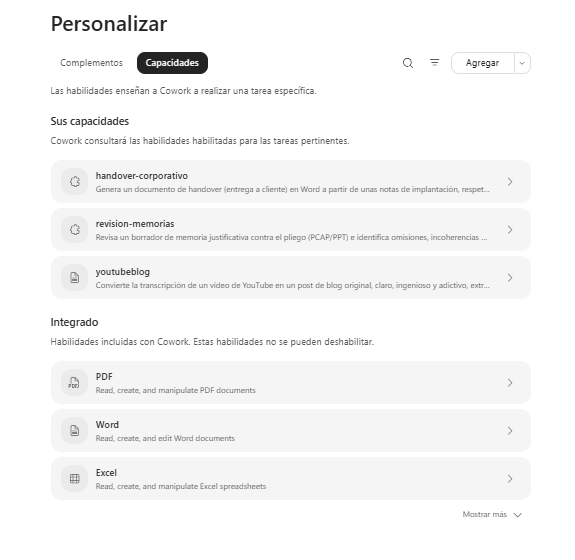
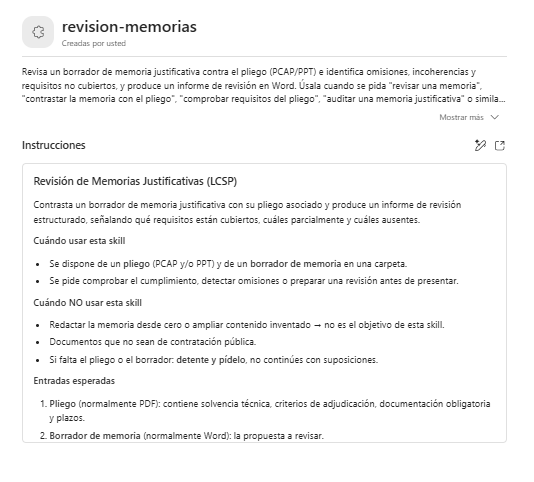
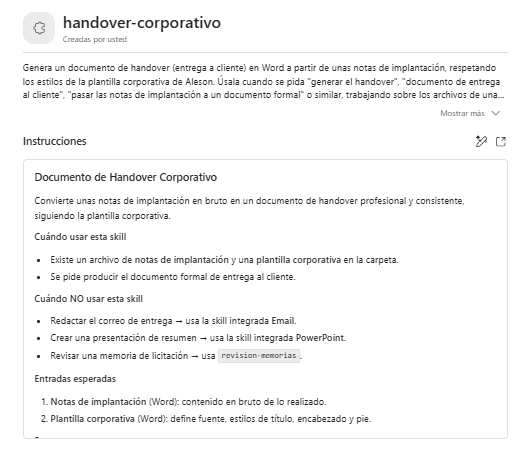
How Skills Get Invoked to “Do It Your Way”
Well written, a skill calls itself when the task fits.
The Excel task (T-002) illustrates this: Cowork loaded the Excel capability, normalized the three bids to unit price, calculated totals using formulas (A: €86,600, B: €87,000, C: €79,000) and flagged the most cost-effective option — Vendor C. With the custom skills, all it took was for the task to match the description for the written procedure to kick in.
The Prompt That Kicked Everything Off
A single instruction launched all five tasks. Here it is, in full:
Work on the "Documents" library in the SharePoint site "Operations-AI".

1. Open the file "Tasks.xlsx" at the library root.
2. Process ONLY the rows whose Status is "To do", in ID order.
3. For each task:
   a. Read the FolderPath column and navigate to that
      SharePoint folder.
   b. Take the documents from that folder (or from
      InputDocuments if specified).
   c. Resolve the task as described using the skill in the
      Skill column.
   d. Place the deliverable where ExpectedOutput indicates,
      following the Notes.
   e. Before any sensitive action (sending emails, posting
      to Teams), ask me for approval.
   f. When you finish the task, set its Status to "Done" in
      Tasks.xlsx and add the date and generated filename
      in the Notes column.
4. When finished, give me a summary: completed tasks,
   deliverables created, and any task blocked due to
   missing information.

Do not delete any files. If you lack data for a task, do not
make it up: mark it as "In progress", note what's missing,
and move on to the next one.
It defines four things: the scope, the filter (only “To do”), the per-task procedure (folder → skill → deliverable), and the safety rules (approve sensitive actions, don’t delete, don’t hallucinate). The full prompt is also included in the attachments (orchestration-prompt.txt).
The Execution: How It Figured Things Out
This is where it stopped looking like autocomplete and started looking like a professional.
It Detected a Dependency and Reordered the Plan
The email (T-004) needed to attach the handover produced by T-005 — and that file didn’t exist yet. Without any instruction from us, Cowork executed T-005 first and T-004 second.
It didn’t just run down the list top to bottom. It understood the logic of the work: it did first what the rest depended on.
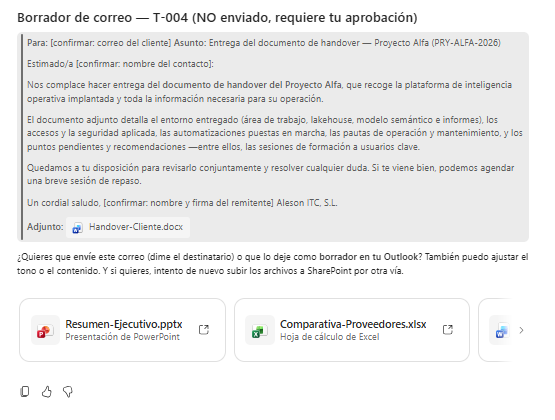
It Paused to Ask for Approval
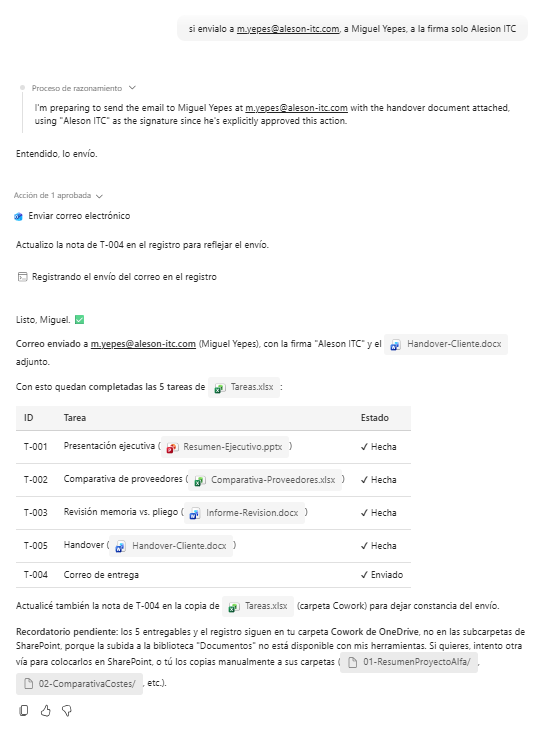
Before sending the email, it displayed the draft with pending fields marked as [confirm: …] and waited. Only after we provided the recipient and signature did it send the email and log the action.
When One Route Failed, It Found Another
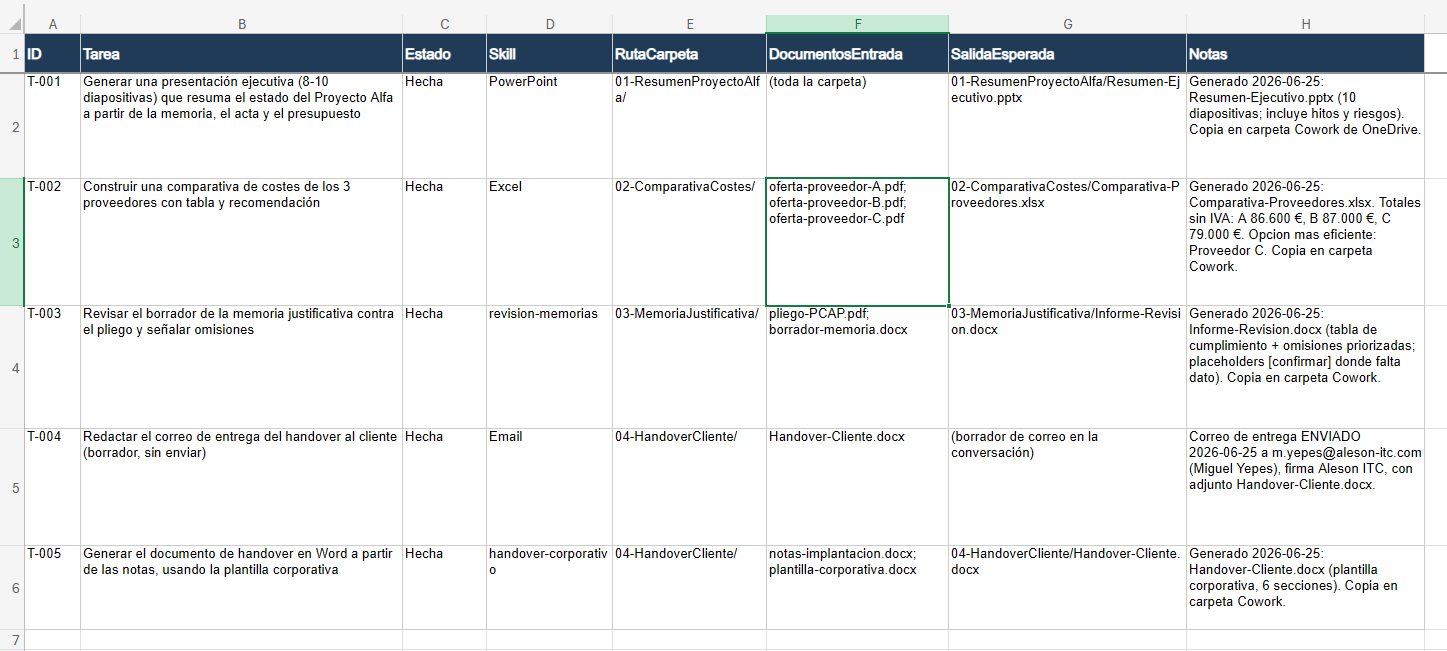
It couldn’t upload new files to the SharePoint library, so it stored the deliverables in OneDrive and, for the task board, it got creative: it edited the cells in the original Tasks.xlsx via the Excel API — statuses set to Done, date and filename added to the notes — without touching the rest.
When one route failed, it didn’t fake success or give up: it said so and found another way. That honesty is precisely what makes it reliable.
Next Installment
In Part 3 we turn this one-off execution into a governed daily process: the full scheduling prompt, how to make costs predictable, security considerations, and the adoption roadmap.
Sources
- Using Copilot Cowork — Skills, Approvals, Scheduling (Microsoft Learn)
- Cowork FAQ — Limits and Plugins (Microsoft Learn)
How Aleson ITC Can Help You Build Your Skills
Designing a skill that works in a demo is straightforward. Designing a set of skills that works at scale in production — with consistent naming, descriptions that don’t collide, versioned templates, and controlled invocation limits — is an engineering project.
At Aleson ITC, we help teams already running on Microsoft 365 turn their internal procedures into reusable Copilot Cowork skills:
- Document process audit: we identify which workflows are good candidates for skills and which don’t justify the effort, prioritized by volume and repeatability.
- SKILL.md design and authoring: we build the instructions, YAML descriptions, and folder structure so that automatic discovery works without false positives.
- SharePoint and OneDrive integration: we configure the libraries, permissions, and paths so that task boards and deliverables flow without friction.
- Connection with your data strategy: if you already operate with Microsoft Fabric or Data Analytics solutions, we design skills that consume data from your lakehouse or feed Power BI dashboards.
- Governance and security: we align the deployment with Zero Trust architectures and your organization’s compliance policies.
If you want to move from AI that answers to AI that executes using your team’s own methods, get in touch with us.
FAQ — Frequently Asked Questions About Skills in Copilot Cowork
What is a SKILL.md file in Copilot Cowork?
It’s a text file in Markdown format with a YAML header that defines the name and description of a custom capability. Cowork reads it to determine when to activate the skill and how to execute it. It’s stored under /Documents/Cowork/skills/ in the user’s OneDrive.
How many custom skills can I create per tenant?
The current limit is 50 custom skills per tenant. Each SKILL.md must be under 1 MB, can include up to 20 auxiliary files, and the total skill package must not exceed 10 MB. Referenced templates can reside in OneDrive or SharePoint.
How does Cowork decide which skill to use for each task?
Cowork relies on two signals: the Skill column in the task board (if present) and the description field in each SKILL.md YAML header. A well-written description — using the verbs and terms a user would actually say — is key for automatic invocation to work without manual intervention.
Can I use built-in and custom skills in the same workflow?
Yes. Custom skills coexist with Cowork’s 13 built-in capabilities (Word, Excel, PowerPoint, PDF, Email, among others). In a single task board, you can mix tasks that use native skills with tasks that apply custom procedures, just as we did in this case with five tasks and two custom skills.
Do I need to restart Cowork for it to detect a new skill?
No. Cowork discovers skills automatically at the start of each conversation. You only need to create the folder and the SKILL.md file in the correct OneDrive path. There’s no manual registration and no service restart required.
What happens if Cowork can’t complete a task from the board?
If it lacks information or a required resource, Cowork doesn’t fabricate data or fake success. It marks the task as In progress, notes what’s missing in the notes column, and moves on to the next one. The final summary details which tasks were completed and which were blocked. If you need help designing resilient workflows for your organization, Aleson ITC can help.